CSS

Beginner Level

  • Quiz

Intermediate Level

  • Quiz

Advanced Level

  • Quiz

Introduction to CSS


What is CSS?

CSS (Cascading Style Sheets) is a stylesheet language used to describe the presentation of an HTML document.
While HTML structures the content (like headings, paragraphs, images, etc.), CSS styles that content defining how it looks in terms of layout, color, font, spacing, animations, and even responsiveness.


What Can You Do with CSS?

  • Set colors, fonts, and sizes
  • Control layout (flexbox, grid, positioning)
  • Add borders, shadows, and backgrounds
  • Create transitions, animations, and hover effects
  • Make sites responsive to different screen sizes

Why Is CSS Important?

  • Separates content from design: HTML handles structure; CSS handles appearance.
  • Improves reusability and maintainability: One CSS file can style multiple pages.
  • Enables responsive design: CSS lets your website adapt to different screen sizes.
  • Supports animations and transitions: You can create visual effects without JavaScript.
  • Reduces code duplication: Write style rules once and apply them across elements.

Understanding CSS Cascading

Cascading in CSS means that when multiple rules target the same element, the browser decides which one to apply based on priority. It follows three main principles:

  1. Specificity – More specific selectors win (e.g., #id beats .class)
  2. Source order – If specificity is the same, the last rule in the code wins.
  3. Importance – Rules marked with !important override most others.

For example, if two body selectors set different background colors, the one written later in the CSS will be applied—unless the earlier one has higher specificity or uses !important.

In the example below, the background will be gray because it’s the last rule applied to the selector. However, if we add "!important" to the black value, it will override the later rule, and the background will change to black.
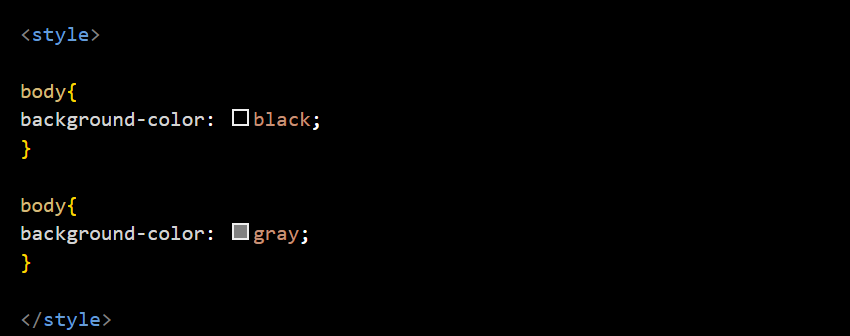

CSS cascading example with two body selectors

Types of CSS: Inline, Internal, and External

CSS can be applied in three main ways: inline, internal, and external.

  • Inline CSS is written directly in the HTML element using the style attribute, ideal for quick, single-use styles but not reusable.
  • Internal CSS is placed within a style tag inside the head of the HTML document, making it suitable for styling a single page.
  • External CSS is written in a separate .css file and linked to the HTML using a link tag, which is the best practice for larger websites because it's reusable, easier to maintain, and keeps style separate from structure.

Note: To add Comments on CSS start with /* and end with */. They are ignored by the browser and are used to explain your code or leave notes.
CSS Syntax and Selectors


What is CSS Syntax?

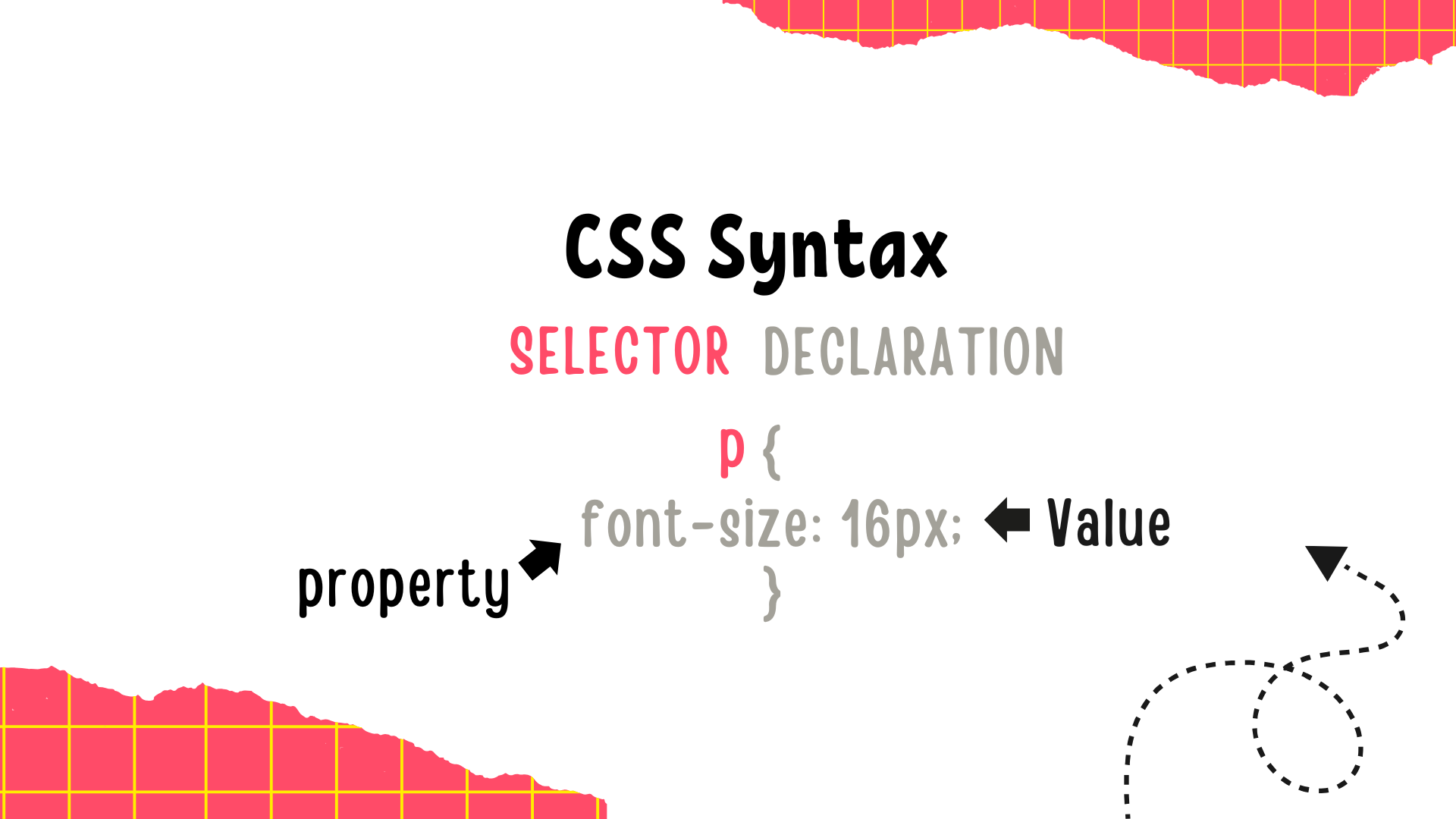
CSS syntax defines how styles are applied to HTML elements and consists of a selector and a declaration block. The selector targets the element(s) you want to style (such as p, .class, or #id), and the declaration block, enclosed in curly braces {}, contains one or more declarations separated by semicolons.

Each declaration includes a property and a value. In the example below, we set the font size of a paragraph to 16 pixels. To apply the same styles to multiple selectors, we separate them with commas.


Css syntax

Selectors

Selectors determine which HTML elements a style rule applies to. CSS offers many types of selectors:

  • Element selector – Targets all elements of a type (e.g., p, h1)
  • Class selector – Targets elements with a specific class (e.g., .container)
  • ID selector – Targets a single element with a unique ID (e.g., #header)
  • Group selector – Targets multiple selectors at once (e.g., h1, h2, h3)
  • Descendant/child selectors – Target elements inside other elements (e.g., nav ul li)
  • Attribute selectors – Target elements by attributes (e.g., input[type="text"])
  • Pseudo-classes – Style elements in a specific state (e.g., :hover, :first-child)
  • Pseudo-elements – Style parts of elements (e.g., ::before, ::after)

Selector Specificity

When multiple rules target the same element, CSS uses specificity to determine which rule takes priority. Here’s the general order from lowest to highest specificity:

  • Universal selector * (least specific)
  • Element/type selectors div, p
  • Class selectors .class, attribute selectors
  • ID selectors #id (most specific)

Colors, Gradients, Shadows, and Backgrounds in CSS


Color Values

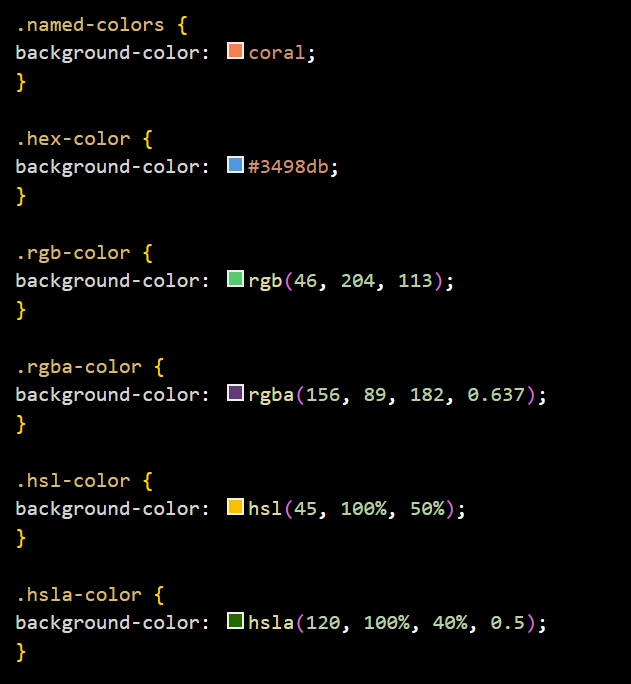
CSS allows you to specify colors using various formats:

  • Color names: Predefined color keywords like red, blue, or green. They don’t support transparency
  • RGB (Red, Green, Blue): Defines colors by mixing red, green, and blue light. Produces solid, fully opaque colors.
  • RGBA (Red, Green, Blue, Alpha): Same as RGB but adds an alpha channel to control transparency, allowing colors to be partially or fully see-through.
  • HSL (Hue, Saturation, Lightness): Defines colors based on hue, saturation, and lightness, producing solid colors without transparency.
  • HSLA (Hue, Saturation, Lightness, Alpha): Same as HSL but with an alpha channel to control the color’s transparency level.


Example of Color Values

Gradients

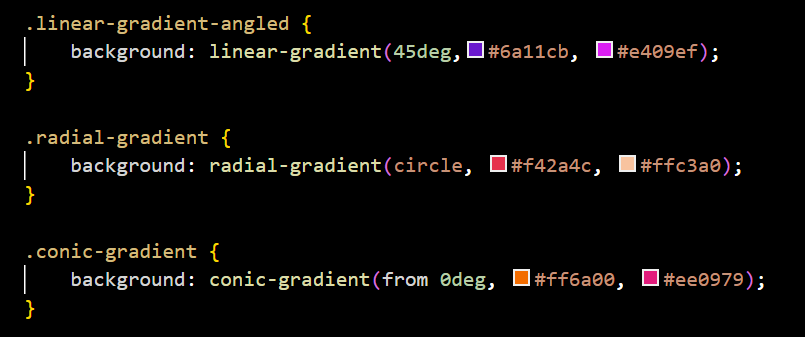
Gradients allow you to create smooth transitions between two or more colors, adding depth and visual interest. CSS supports linear and radial gradients via the background or background-image property.


  • Linear gradients – Colors transition along a straight line, which can be horizontal, vertical, or angled.
  • Radial gradients – Colors spread outward from a central point in a circular or elliptical pattern.
  • Conic gradients – Colors rotate around a central point, creating a cone-like effect, similar to a color wheel.

Visual example of linear, radial, and conic gradients in CSS

Applying Shadows: Text and Box Shadows

CSS provides box-shadow to add shadows around elements, creating a sense of depth, and text-shadow to add shadows behind text, improving readability or adding style. Both accept values for horizontal and vertical offset, blur radius, spread, and color.


Visual example of an inset box shadow

Background Properties

  • background-color – Sets a solid background color.
  • background-image – Adds images or gradients as backgrounds.
  • background-repeat – Controls whether background images repeat (repeat, no-repeat).
  • background-size – Adjusts the size of background images (cover, contain, or specific dimensions).
  • background-position – Positions the background image (center center, top left, etc.).
  • background-attachment – Determines if the background scrolls with the page or is fixed.


Visual example of background properties

Fonts and Text


Working with Fonts

CSS gives you control over the appearance of text through font-related properties. You can specify which fonts to use with the font-family property, using either common system fonts or custom web fonts. To ensure fallback options, it's best to list multiple fonts in order of preference. CSS also lets you control font size, weight, and style to create a consistent and readable design.


Font Properties

  • font-family – Sets the font type (e.g., Arial, 'Open Sans', serif).
  • font-size – Controls the size of the text (e.g., 16px, 1.2em).
  • font-weight – Sets the thickness of the text (e.g., normal, bold, 400, 700).
  • font-style – Defines the style of the font (e.g., normal, italic, oblique).
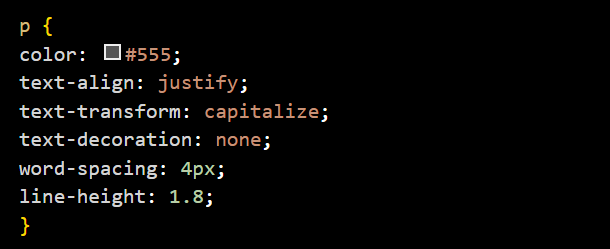
  • line-height – Adjusts the space between lines of text.
  • letter-spacing – Sets spacing between letters.
  • word-spacing – Controls spacing between words.
  • text-transform – Changes the case of text (e.g., uppercase, lowercase, capitalize).

Text Alignment and Decoration

In addition to font properties, CSS allows you to control how text is aligned and styled. With properties like text-align, text-decoration, and text-shadow, you can enhance readability and create visual emphasis.


  • text-align – Aligns text to the left, right, center, or justify.
  • text-decoration – Adds or removes underlines, overlines, or line-throughs.
  • text-shadow – Applies shadow effects to text for a more styled appearance.

Example of Font properties

The CSS Box Model


What is the Box Model?

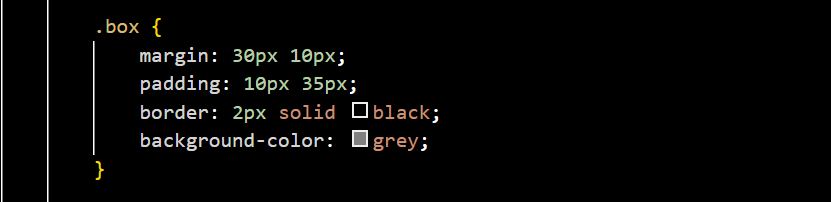
In CSS, every HTML element is considered a rectangular box, and the Box Model describes how these boxes are structured and rendered on the page. Understanding the Box Model is essential for controlling spacing, layout, and element dimensions. Each box consists of four layers: content, padding, border, and margin, from innermost to outermost.


Box Model Components

  • Content – The innermost part where text or images appear. Its size can be set with width and height.
  • Padding – Clears space between the content and the border. It increases the element's size without affecting the margin.
  • Border – Surrounds the padding (if any) and the content. You can control its width, color, and style (e.g., solid, dashed).
  • Margin – Clears space outside the border. It creates space between the element and other elements around it.

Visual representation of the CSS box model

Total Element Size

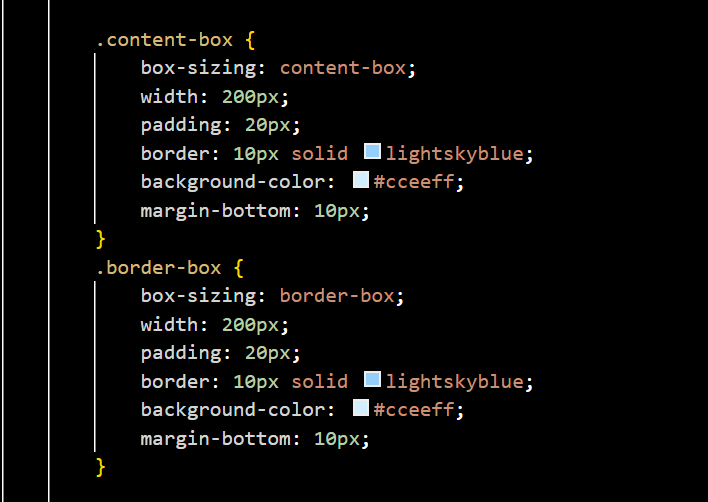
The total size of an element is calculated by adding together the content, padding, border, and margin. By default, CSS uses the content-box model, where width and height apply only to the content. You can switch to the border-box model using the box-sizing property, which includes padding and border within the specified width and height.


Visual representation of the CSS box sizing properties

CSS Sizing: Width, Height, Min/Max


Understanding Sizing in CSS

CSS provides flexible ways to control the size of elements using the width and height properties, as well as constraints using min-width, max-width, min-height, and max-height. These properties help ensure that elements adapt well across different screen sizes while maintaining usability and design structure.


Key Properties

  • width / height – Defines the fixed size of an element. Can use any CSS unit like px, %, em, etc.
  • min-width / min-height – Sets the minimum size an element can shrink to. Prevents it from becoming too small.
  • max-width / max-height – Sets the maximum size an element can grow to. Useful for responsive design constraints.

Why Use Min and Max?

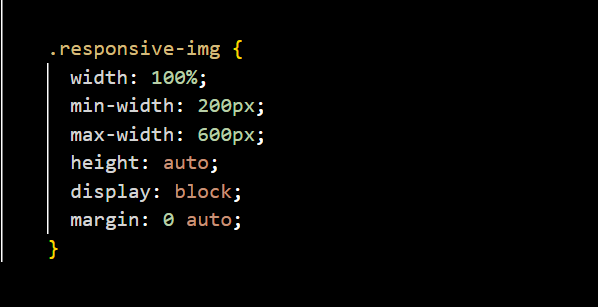
Using min- and max- values ensures better control in responsive layouts. For example, an image might scale with the screen but never go below a readable or viewable size thanks to min-width, or never grow too large thanks to max-width. In the below example the image scales with the screen size but will never be smaller than 200px or larger than 600px.


Example of CSS sizing with min, max, and fixed dimensions

CSS Units


Understanding CSS Units

CSS units define the size of elements, spacing, and text. They can be absolute or relative, but in modern web design, relative units are more flexible and responsive. Below are the most commonly used units in web development:


Commonly Used Units

  • px (pixels) – A fixed unit representing one screen dot. Useful for precise control.
  • % (percent) – A relative unit based on the size of the parent element. Ideal for fluid layouts.
  • em – Relative to the font-size of the element. Commonly used for padding, margins, and scalable typography.
  • rem (root em) – Relative to the root element’s font size (html). More predictable than em.
  • vw (viewport width) – Relative to 1% of the viewport’s width. Useful for responsive layouts and text.
  • vh (viewport height) – Relative to 1% of the viewport’s height. Often used for full-screen sections or centering vertically.

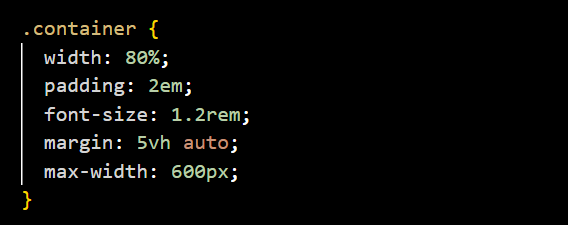
Visual representation of all CSS Units


This example uses a mix of percentages, rem, em, and viewport units to create a flexible, responsive container that adjusts across screen sizes.

CSS Display Property


What Is the Display Property?

The display property in CSS controls how an element is rendered in the layout.
Whether it behaves as a block, inline, or flex container, for example.
It’s one of the most important properties for determining layout behavior and element positioning in modern web design.


Common Display Values

  • block – The element takes up the full width available and starts on a new line (e.g., <div>, <p> by default).
  • inline – The element stays within the same line and only takes up as much width as needed (e.g., <span>).
  • inline-block – Like inline, but allows setting width and height.
  • flex – Turns the element into a flex container, enabling powerful layout control of its children with display: flex.
  • grid – Makes the element a grid container, allowing placement of child elements into rows and columns.
  • none – Hides the element from the layout completely (it won’t take up any space).

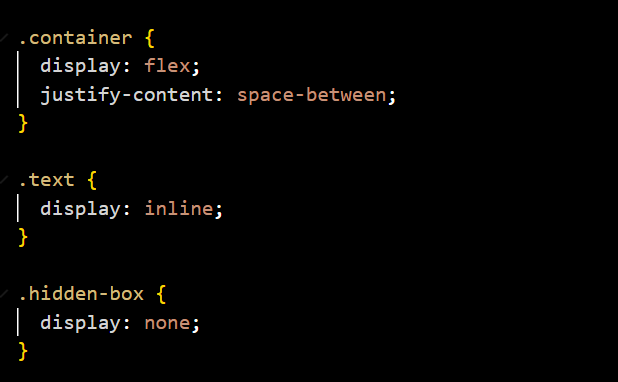
Example of Display properties

In this example, .container uses flex to layout items in a row, .text stays inline with other content, and .hidden-box is removed from the layout using display: none.

CSS Overflow and Visibility


Overflow Property

The overflow property controls what happens when content exceeds the dimensions of its container. It helps manage scrolling and clipping behavior. Common values include:

  • visible – Default value; content is not clipped and may overflow the element.
  • hidden – Clips the content that overflows and hides it from view.
  • scroll – Always adds scrollbars (horizontal and/or vertical) even if not needed.
  • auto – Adds scrollbars only when necessary, depending on the content overflow.

Visibility Property

The visibility property controls whether an element is visible or not, but unlike display: none, it keeps the space the element occupies. Common values include:

  • visible – Default; the element is shown.
  • hidden – The element is invisible but still takes up space in the layout.
  • collapse – Primarily used in table elements to hide rows or columns without leaving space.

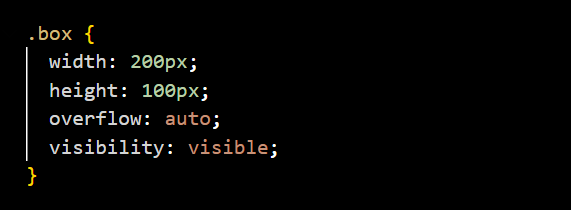
Example of Css visibility and overflow

In this example, the .box will show scrollbars if the content overflows, and it remains visible in the layout.

CSS Positioning


What Is Positioning in CSS?

The position property in CSS controls how an element is placed in the document flow and allows for precise control of its location using the top, right, bottom, and left properties.
Different position values change how the element behaves relative to its surroundings.


Common Position Values

  • static – Default value; elements follow the normal document flow and are not affected by top, right, bottom, or left.
  • relative – The element stays in the normal flow but can be moved relative to its original position.
  • absolute – The element is removed from the normal flow and positioned relative to its nearest positioned ancestor (not static).
  • fixed – The element is removed from the document flow and positioned relative to the viewport; it stays fixed when scrolling.
  • sticky – Acts like relative until a scroll threshold is met, then acts like fixed.

Z-index in CSS


What is z-index?

The z-index property in CSS controls the stacking order of elements along the z-axis (front-to-back). This becomes useful when elements overlap. It decides which element appears on top.


How z-index Works

Elements with a higher z-index number appear in front of elements with a lower number. However, z-index only works on elements with a position value other than static (e.g., relative, absolute, fixed, or sticky).


  • position: relative; or other non-static positioning is required
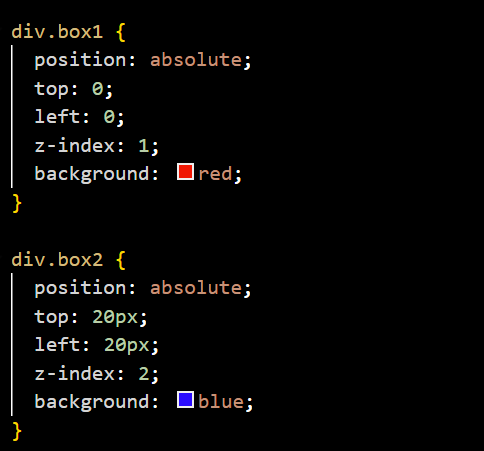
  • z-index: 1; will place the element behind z-index: 2;
  • Default z-index is auto, which follows source order

Blue box with z-index 2 overlapping red box with z-index 1

In the example above, the blue box (z-index: 2) will appear on top of the red box (z-index: 1) even though it comes later on the page.


Common Uses of z-index

  • Bring modals, popups, or overlays to the front
  • Stack dropdown menus or tooltips above other content
  • Control overlapping sections like sticky headers and banners

Tips for Using z-index Effectively

  • Only use it when elements actually overlap
  • Avoid using very large values (like 999999) unless necessary
  • Keep stacking logic consistent across your layout
  • Remember: z-index only applies when position is set

CSS Flexbox Layout


What is Flexbox?

Flexbox (short for Flexible Box Layout) is a one-dimensional layout method used in CSS to align and distribute space among items within a container.
It allows you to arrange items horizontally or vertically with ease, making responsive design simpler and more efficient. By turning an element into a flex container, its direct children (flex items) gain access to powerful alignment and spacing properties.


Key Concepts

  • Flex Container: The parent element that has display: flex or display: inline-flex.
  • Flex Items: The direct children of a flex container that are laid out using Flexbox rules.
  • Main Axis: The primary axis along which flex items are laid out (horizontal by default).
  • Cross Axis: The axis perpendicular to the main axis (vertical by default).

Common Flex Container Properties

  • display: flex – Turns the container into a flex container.
  • flex-direction – Sets the direction of items (row, row-reverse, column, column-reverse).
  • justify-content – Aligns items along the main axis (start, center, space-between, etc.).
  • align-items – Aligns items along the cross axis (stretch, center, flex-start, etc.).
  • flex-wrap – Allows items to wrap onto multiple lines if needed.

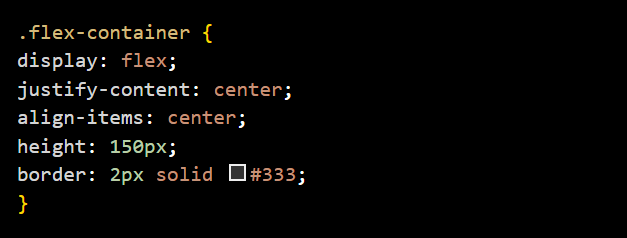
Example of Flexbox layout in CSS

Common Flex Item Properties

  • flex-grow – Defines how much a flex item will grow relative to others.
  • flex-shrink – Defines how much a flex item will shrink when necessary.
  • flex-basis – Sets the initial size of a flex item before space is distributed.
  • align-self – Overrides align-items for individual flex items.
  • order – Controls the order in which items appear in the layout.

CSS Grid Layout


What is CSS Grid?

CSS Grid Layout is a two-dimensional layout system that allows you to design web pages using a grid-based structure. It lets you control both rows and columns, making it ideal for creating complex layouts without relying on floats or positioning tricks.


Key Concepts

  • Grid Container: The element with display grid that establishes a grid formatting context for its children.
  • Grid Items: The direct children of a grid container.
  • Grid Lines: The lines that divide the grid into rows and columns (can be referenced by number or name).
  • Grid Tracks: The rows and columns themselves.
  • Grid Cells: The spaces between two adjacent row and column lines.
  • Grid Areas: Rectangular sections that cover one or more grid cells.

Common Grid Container Properties

  • display: grid – Turns the element into a grid container.
  • grid-template-columns – Defines the number and size of columns.
  • grid-template-rows – Defines the number and size of rows.
  • gap – Sets the spacing between rows and columns.
  • justify-items – Aligns items along the row axis (horizontally).
  • align-items – Aligns items along the column axis (vertically).

Common Grid Item Properties

  • grid-column – Defines which columns the item should span.
  • grid-row – Defines which rows the item should span.
  • grid-area – Lets you name and place items within a named grid layout.
  • justify-self – Aligns the item horizontally inside its grid area.
  • align-self – Aligns the item vertically inside its grid area.

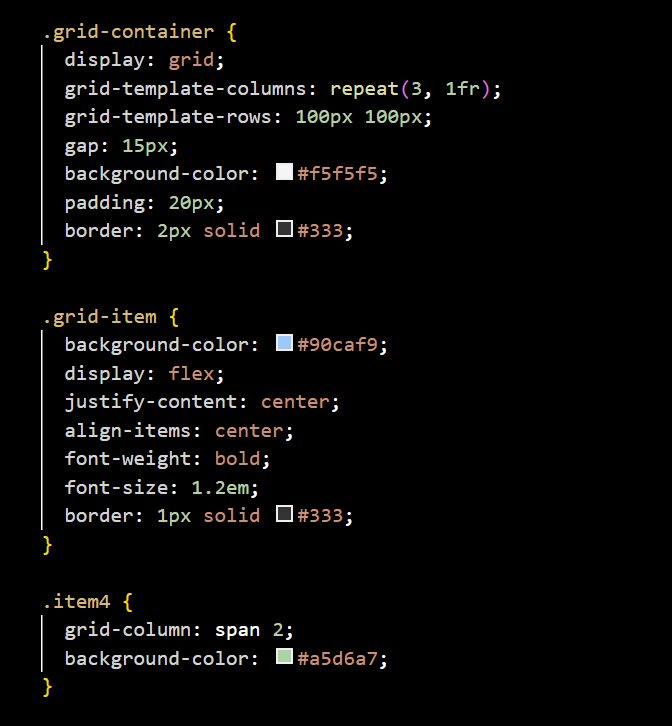
Example of CSS Grid layout

What This Example Shows:

  • 3 columns using grid-template-columns: repeat(3, 1fr)
  • 2 rows of 100px height
  • A gap of 15px between items
  • Item 4 spans two columns using grid-column: span 2

Pseudo-classes and Pseudo-elements


What Are Pseudo-classes?

A pseudo-class is a keyword added to a selector that lets you style elements based on their state, position, or user interaction, without needing a class or ID.


  • :hover – Targets an element when the user hovers over it
  • :focus – Styles an element when it gains focus (e.g., a clicked input)
  • :first-child – Targets the first child element inside a parent
  • :nth-child(n) – Styles elements based on their order (e.g., every 2nd item)
  • :checked – Applies styles to checked checkboxes or radio buttons
  • :disabled – Targets form elements that are disabled

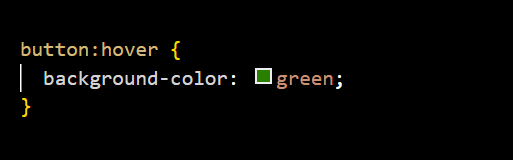
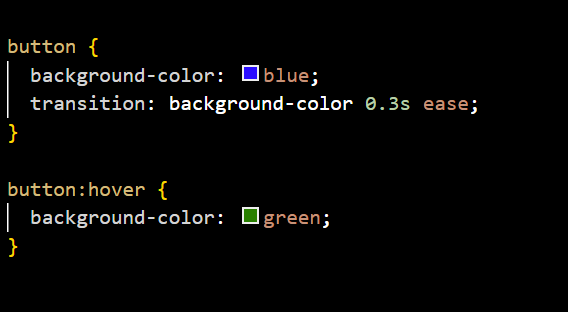
In the below example when the user hovers over the button, its background changes to green.


Examples of pseudo-class hover

What Are Pseudo-elements?

A pseudo-element lets you style specific parts of an element that you can’t easily target with regular selectors.


  • ::before – Inserts content before the element’s actual content
  • ::after – Inserts content after the element’s content
  • ::first-letter – Styles the first letter of a block
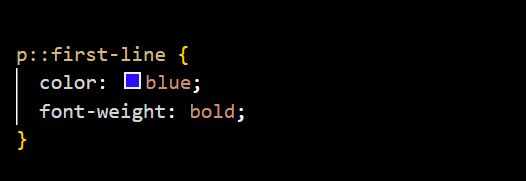
  • ::first-line – Targets only the first line of a paragraph
  • ::placeholder – Styles the placeholder text in input fields

In the below example, only the first line of each paragraph will be bold and blue


Examples of pseudo-element first-line

Important Notes

  • Pseudo-classes use one colon (:), like :hover
  • Pseudo-elements use two colons (::), like ::after
  • Older browsers may still support single-colon syntax for pseudo-elements

CSS Variables


What Are CSS Variables?

CSS Variables (also called custom properties) allow you to store values in reusable names, making your styles easier to maintain and update. Instead of repeating values like colors or padding across different rules, define them once and reuse them anywhere.


Important Notes

  • Variables must start with -- (two dashes) followed by the name
  • Use the var() function to access the value, e.g., var(--main-color)
  • You can include a fallback: var(--unknown, fallback)
  • Variables are often defined inside :root to make them accessible globally
  • They are case-sensitive
  • They follow normal CSS cascading and inheritance rules
  • You can override them in specific elements or within media queries

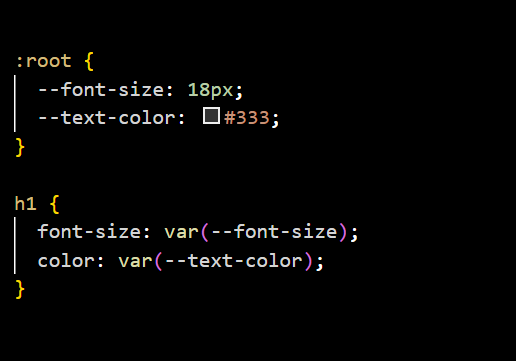
In the below example the root sets the font size and text color for all h1 elements using reusable variables.


Example of CSS custom properties

Why Use CSS Variables?

  • Centralized control: Change one value, and all related styles update instantly.
  • Consistency: Keeps spacing, colors, and fonts uniform across the project.
  • Responsive and themable: Easily swap themes or values using media queries or JavaScript.
  • Cleaner code: Reduces duplication and simplifies future edits.

CSS Transform


What is CSS Transform?

The transform property in CSS allows you to visually manipulate elements by rotating, scaling, skewing, or translating them in 2D or 3D space. It does not affect the actual layout or position in the document flow, but it changes how the element appears on the screen.


Common Transform Functions

  • translate(x, y) – Moves an element from its current position horizontally (x) and vertically (y).
  • rotate(angle) – Rotates the element clockwise or counterclockwise by the given angle (e.g., deg).
  • scale(x, y) – Resizes the element. Values above 1 enlarge it, below 1 shrink it.
  • skew(x-angle, y-angle) – Slants the element along the X and/or Y axis.
  • matrix() – Combines multiple transforms into one using a matrix of six values.

Transform Origin

The transform-origin property lets you set the point around which a transformation occurs (default is the center of the element). For example, you can rotate around the top-left corner or bottom center.


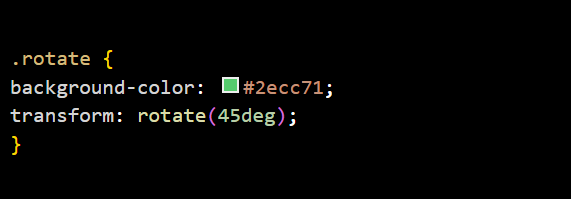
In the example below, The transform: rotate(45deg); rule rotates the element by 45 degrees clockwise from its center.


Example of CSS transform rotate

CSS Transitions and Animations


What Are Transitions?

Transitions allow you to change property values smoothly (over a duration) rather than instantly. You can create hover effects, color fades, size changes, and more with minimal code.

In the below example, when hovered, the button smoothly changes its background color over 0.3 seconds


Example of a background-color transition

Common Transition Properties

  • transition-property: What will animate (e.g., color, transform)
  • transition-duration: How long the transition lasts (e.g., 0.5s)
  • transition-timing-function: Easing effect (ease, linear, ease-in-out)
  • transition-delay: Wait time before transition starts

What Are Animations?

Animations allow you to define keyframes (specific steps in a motion) and control how an element moves, fades, transforms, or behaves over time — even looping infinitely if needed.

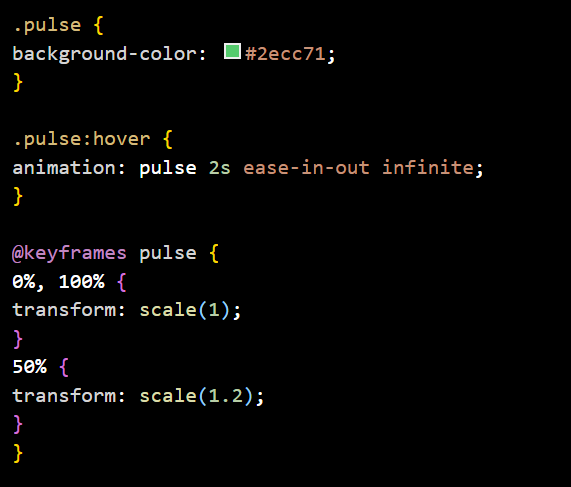
In the below example, the .pulse class applies a green background color to an element. When you hover over this element, it triggers an infinite animation called pulse that lasts 2 seconds and uses an ease-in-out timing function.

The @keyframes pulse defines the animation sequence: at the start (0%) and end (100%), the element is at its normal scale (1), while at the midpoint (50%), it scales up to 1.2 times its size, creating a smooth pulsing effect that repeatedly grows and shrinks the element.


Example of a pulse animation

Common Animation Properties

  • animation-name: Name of the keyframes to use
  • animation-duration: Length of one cycle
  • animation-timing-function: How the animation progresses (ease, linear, etc.)
  • animation-delay: Time before animation starts
  • animation-iteration-count: How many times it runs (e.g., infinite)
  • animation-direction: Direction (normal, alternate)
  • animation-fill-mode: Keeps final state after animation ends (forwards)

CSS Media Queries


What Are Media Queries?

Media queries allow you to apply CSS rules conditionally based on the characteristics of the user’s device, such as screen width, height, orientation, and resolution. They are a cornerstone of responsive design, helping your website adapt to different screen sizes, from phones and tablets to large desktop monitors.


Basic Syntax

A media query uses the @media rule, followed by a condition, and wraps a block of CSS rules. The most commonly used condition is screen width, using min-width or max-width to target devices based on their viewport size.


Common Use Cases

  • min-width – Applies styles when the viewport is greater than or equal to a certain width.
  • max-width – Applies styles when the viewport is less than or equal to a certain width.
  • orientation – Targets devices in portrait or landscape mode.
  • resolution – Useful for targeting high-density displays like Retina screens.

Example Media Query


Example of CSS Media Queries in action

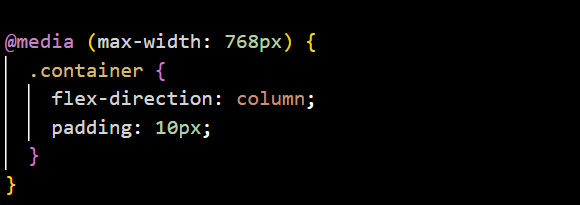
In the above example, when the screen width is 768 pixels or less, the .container class switches to a vertical layout and applies different padding. This ensures the content remains readable and well-structured on smaller screens.

Advanced CSS Selectors


What Are Advanced Selectors?

Advanced CSS selectors give you more power and precision when targeting elements in your HTML. They go beyond basic element, class, and ID selectors, allowing you to apply styles based on relationships, attributes, and state.


Common Advanced Selectors

  • Descendant Selector (A B) – Targets all B elements that are inside A (at any depth).
  • Child Selector (A > B) – Targets direct B children of A.
  • Adjacent Sibling (A + B) – Targets the first B element immediately after A.
  • General Sibling (A ~ B) – Targets all B siblings that come after A.
  • Attribute Selector ([type="text"]) – Targets elements based on their attributes.
  • :nth-child(n) – Selects elements based on their position in a parent (e.g., :nth-child(2) for the second child).
  • :not(selector) – Excludes elements that match a specific selector.

Example


Example of advanced CSS selectors

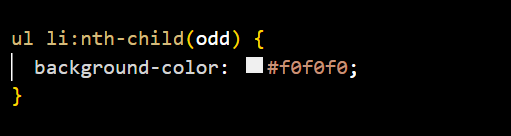
In the above example, all odd-numbered list items inside a <ul> will have a light gray background.

CSS Functions


What Are CSS Functions?

CSS functions are built-in methods that perform calculations, return values, or define behaviors within CSS properties. They help make your styles more flexible, powerful, and dynamic.


Common CSS Functions:

  • calc() – Performs calculations to determine CSS values (e.g., width: calc(100% - 50px)).
  • clamp() – Sets a responsive value between a minimum, preferred, and maximum size.
  • min(), max() – Returns the smallest/largest value between multiple options.
  • attr() – Retrieves an attribute value from the HTML element (useful in generated content).
  • minmax() – Sets a range for grid sizing.

Example


Example of CSS Functions

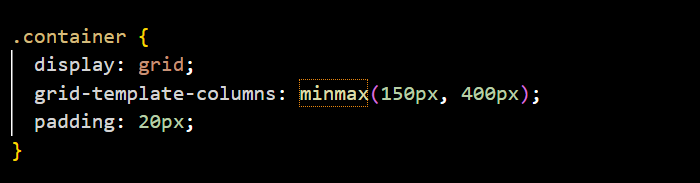
In the above example, .container defines one grid column between 150px and 400px, no matter the screen size.

Object Fit & Object Position


What is object-fit?

The object-fit property defines how content like images or videos should be resized to fit their container. It's particularly useful when dealing with fixed-size boxes that display media.


Common Values:

  • fill – Default. Stretches the media to fill the container (may distort).
  • contain – Scales the media to fit inside the container while preserving aspect ratio.
  • cover – Scales the media to completely cover the container, preserving aspect ratio. Crops excess.
  • none – The media is not resized.
  • scale-down – Like none or contain, whichever results in a smaller image.

What is object-position?

The object-position property controls the alignment of the replaced element (like an image or video) inside its container when using object-fit. It works similar to background-position.


Common Values:

  • center – Default. Centers the media.
  • top, bottom, left, right – Aligns the media to the corresponding edge.

Example:

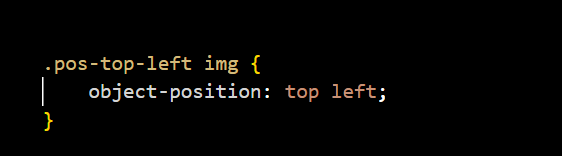
In the below example, the image is aligned to the top-left corner of its container.


Example of object-position

Scroll Behavior in CSS


What Does "Scroll Behavior" Mean?

In CSS, scroll behavior refers to how scrolling occurs inside a container or on the page. CSS provides several properties that control how the browser handles scrolling, such as the movement style, snap positions, and spacing when an element is brought into view.


1. scroll-behavior

Defines how scrolling happens when navigating to an element (for example, when clicking anchor links or using JavaScript’s scrollIntoView()).

  • auto – Default, jumps instantly to the target.
  • smooth – Adds a smooth animated scrolling effect.

2. scroll-snap-type & scroll-snap-align

These properties work together to create controlled scroll snapping. The container uses scroll-snap-type to define how snapping occurs, and the child elements use scroll-snap-align to define where they should snap within the container.


  • scroll-snap-type – Enables "snap points" where scrolling automatically stops at specific positions.
    • x / y – Apply snapping on the horizontal (x) or vertical (y) axis.
    • mandatory – Always snap exactly to the closest point.
    • proximity – Snap only when close to a snap point.
  • scroll-snap-align – Defines how each child element aligns at the snap point.
    • start – Aligns the start edge of the element with the container’s snap position.
    • center – Centers the element in the container when snapped.
    • end – Aligns the end edge of the element with the container’s snap position.

3. scroll-margin & scroll-padding

These properties are similar to margin and padding, but they apply when scrolling an element into view (such as through anchor navigation or JavaScript).


  • scroll-margin – Adds space outside the element when it’s scrolled into view.
  • scroll-padding – Reserves space inside the container when scrolling to a target element.

Example Preview:

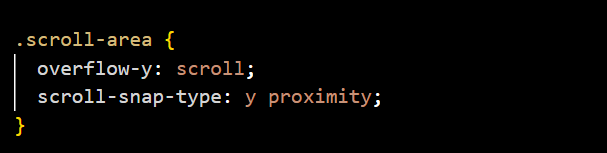
This example enables smooth scrolling and sets up vertical snapping with proximity behavior:


.scroll-container {
  scroll-behavior: smooth;
  scroll-snap-type: y proximity;
}

.snap-item {
  scroll-snap-align: center;
}
  

Scroll behavior example in CSS

Custom Scrollbars


What Are Custom Scrollbars?

By default, browsers display scrollbars in their own style, but you can customize their appearance using CSS. This allows you to match the scrollbar with your website’s design and improve the overall user experience.


How to Customize Scrollbars

You can style scrollbars using pseudo-elements in CSS, especially for WebKit-based browsers (like Chrome, Edge, and Safari). Firefox supports a different syntax.


Common Pseudo-elements (WebKit):

  • ::-webkit-scrollbar – Targets the whole scrollbar.
  • ::-webkit-scrollbar-thumb – Targets the draggable part (the “thumb”).
  • ::-webkit-scrollbar-track – Targets the track area the thumb moves along.

Example:

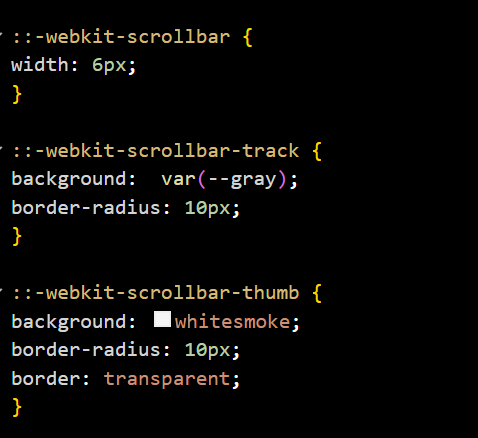
This example sets a custom width, thumb color, and track background for a vertical scrollbar in WebKit browsers.


Example of custom scrollbar CSS

Filters & Blend Modes


What are CSS Filters?

CSS filters allow you to apply graphical effects like blur, brightness, contrast, and more to elements, such as images or divs, without needing to edit the images themselves.


Common Filter Functions:

  • blur(px) – Applies a blur effect.
  • brightness(%) – Adjusts the brightness.
  • contrast(%) – Changes contrast levels.
  • grayscale(%) – Converts to grayscale.
  • invert(%) – Inverts colors.
  • sepia(%) – Applies a sepia tone.
  • saturate(%) – Adjusts color saturation.
  • drop-shadow() – Adds a shadow with offset and blur.

What are Blend Modes?

Blend modes control how elements blend or mix colors with their background or other overlapping elements, similar to blend modes in image editing software like Photoshop.


Common Blend Modes:

  • normal – Default; no blending.
  • multiply – Multiplies the colors, resulting in a darker image.
  • screen – Multiplies the inverse colors, resulting in a lighter image.
  • overlay – Combines multiply and screen modes for contrast.
  • darken – Keeps the darker pixels.
  • lighten – Keeps the lighter pixels.

Example:

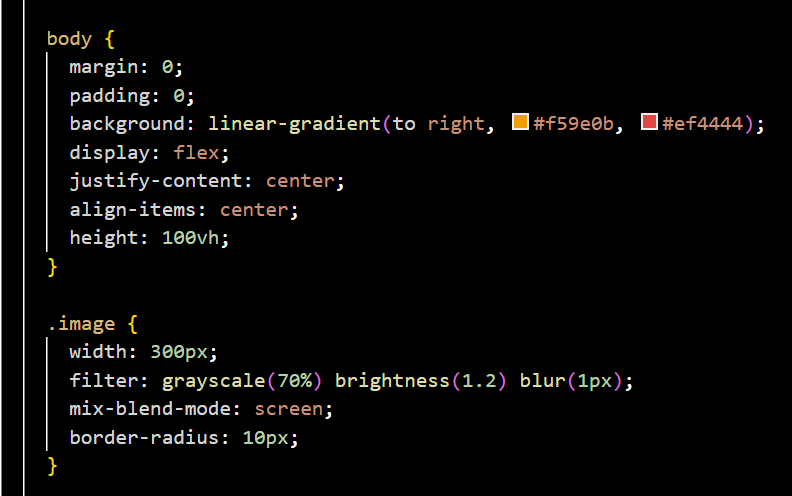
In the example below, a grayscale, brightness, and blur filter is applied to an image, and a blend mode is used to mix the image's colors with the background gradient. Flexbox centers the image on the screen, and the body uses a horizontal gradient to enhance the blending effect.


Example of CSS filters and blend modes

Important Notes:

  • Filters can impact performance if overused or used on large areas.
  • Blend modes work best when elements overlap with some transparency.
  • Support for most filters and blend modes is good in modern browsers, but check compatibility for older versions.

CSS Architecture and BEM


What is CSS Architecture?

CSS Architecture refers to the organized structure and methodology of writing CSS code to make styles scalable, maintainable, and easier to understand in large projects.


What is BEM?

BEM (Block Element Modifier) is a popular naming convention for CSS classes that helps create reusable components and code consistency by clearly defining blocks, their elements, and their modifiers.


BEM Structure Explained:

  • Block – The standalone entity that is meaningful on its own, e.g., button.
  • Element – A part of the block that has no standalone meaning and is semantically tied to the block, e.g., button__icon.
  • Modifier – A flag on a block or element used to change appearance or behavior, e.g., button--primary or button__icon--small.

Benefits of Using BEM:

  • Improves code readability and maintainability.
  • Prevents style conflicts by using strict naming.
  • Encourages modular and reusable CSS components.
  • Makes collaboration easier on large teams and projects.

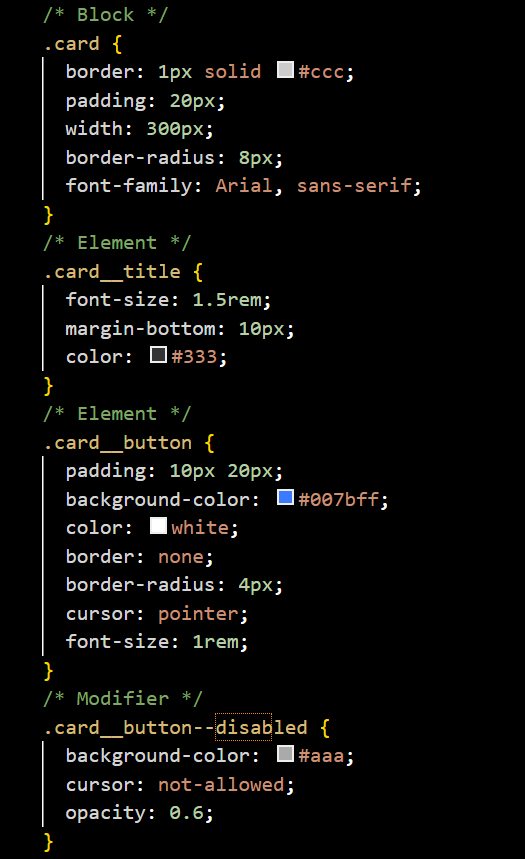
Example:

In the example below, the CSS classes follow the BEM convention. A card block contains elements like card__title and card__button, with a modifier card__button--disabled that changes the button’s style.


Example of CSS Architecture and BEM naming

Important Notes:

  • BEM class names use double underscores __ to separate blocks and elements, and double hyphens -- for modifiers.
  • Following CSS architecture principles helps avoid messy styles and difficult debugging.
  • BEM is compatible with any CSS methodology and can be adapted to frameworks like SCSS or CSS-in-JS.